Cutting Board Designer on iPhone Duo: The Whole Designer When You Open It
Open an iPhone Duo and Cutting Board Designer now uses the whole inner display. The board settings and a live preview of the board sit side by side, with your projects in a sidebar, the way they do on an iPad.
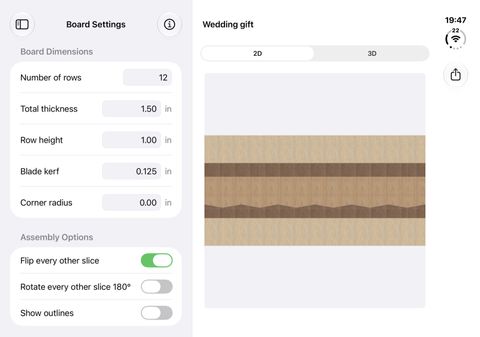
Quick answer: the latest update of Cutting Board Designer for iPhone gives iPhone Duo a split view on the inner display. When you open the phone, the board settings and a live preview sit side by side, with your projects in a sidebar. Folded, the outer display works like any other iPhone. The update is free on the App Store.
Unfolded: settings and preview on one screen
On a regular iPhone, the designer is a stack of screens: you pick a project from the list, then edit the board with the settings in a sheet over the preview. On iPhone Duo's inner display there's room to show it all at once, so the app now uses the same split layout as on iPad:
- Projects in a sidebar on the left. Tap a board to open it, or hide the sidebar with the button at the top of the settings column when you want more room for the board, as in the screenshot above.
- Board Settings in the middle: the number of rows, total thickness, row height, blade kerf and corner radius, whether every other slice is flipped or rotated 180°, and below those, each layer's wood, width and angle. The ⓘ button at the top opens the materials list, with how much of each wood to buy.
- The preview on the right. It redraws as you change a setting, so you can widen a strip or change a wood and see the end-grain pattern change next to the control you're using. The 2D / 3D switch at the top changes the view.
The inner display is narrower than an iPad's, so we tuned the column widths for it. All three columns fit without the preview getting squeezed into a thin strip.
Folded: the iPhone app you know
Close the phone and the outer display uses the standard iPhone layout: the project list first, then the designer with its settings sheet. It's the quicker view for checking a cut list or a board's dimensions in the shop. Open the phone when you want to sit down and design.
Why the split view helps when you're planning a board
Most of designing an end-grain board is small changes. You make a strip a bit narrower, swap maple for cherry, flip every other slice, then look at the result. In the screenshot, the edge above the lower walnut band is cut at an angle. With Flip every other slice on, every other slice mirrors that angle, which is what makes the zigzag across the board. With the settings and the preview side by side, you see every change straight away, without opening and closing a sheet. That makes it easy to try three or four versions of a pattern before you settle on one. If you've not planned an end-grain board before, our guide to designing an end-grain cutting board walks through those choices.
With Pro, switch the preview to 3D to turn the board over and check the pattern from every side, alongside the settings that make it.
How to get it
Update Cutting Board Designer from the App Store, or download it free if you don't have it yet. The split view turns on by itself when you open an iPhone Duo; there's nothing to set up. Your projects are the same ones you see folded, and with Pro they sync with the web designer and your other devices.